CAD Viewer · Local drawing processing
Inspect DWG and DXF layers online
A crowded drawing is easier to review when you can focus on the relevant layers. Open a local DWG or DXF, search the real layer list, hide unrelated drawing content or isolate one layer, then restore the full view. The current tools are free and require no sign-up.
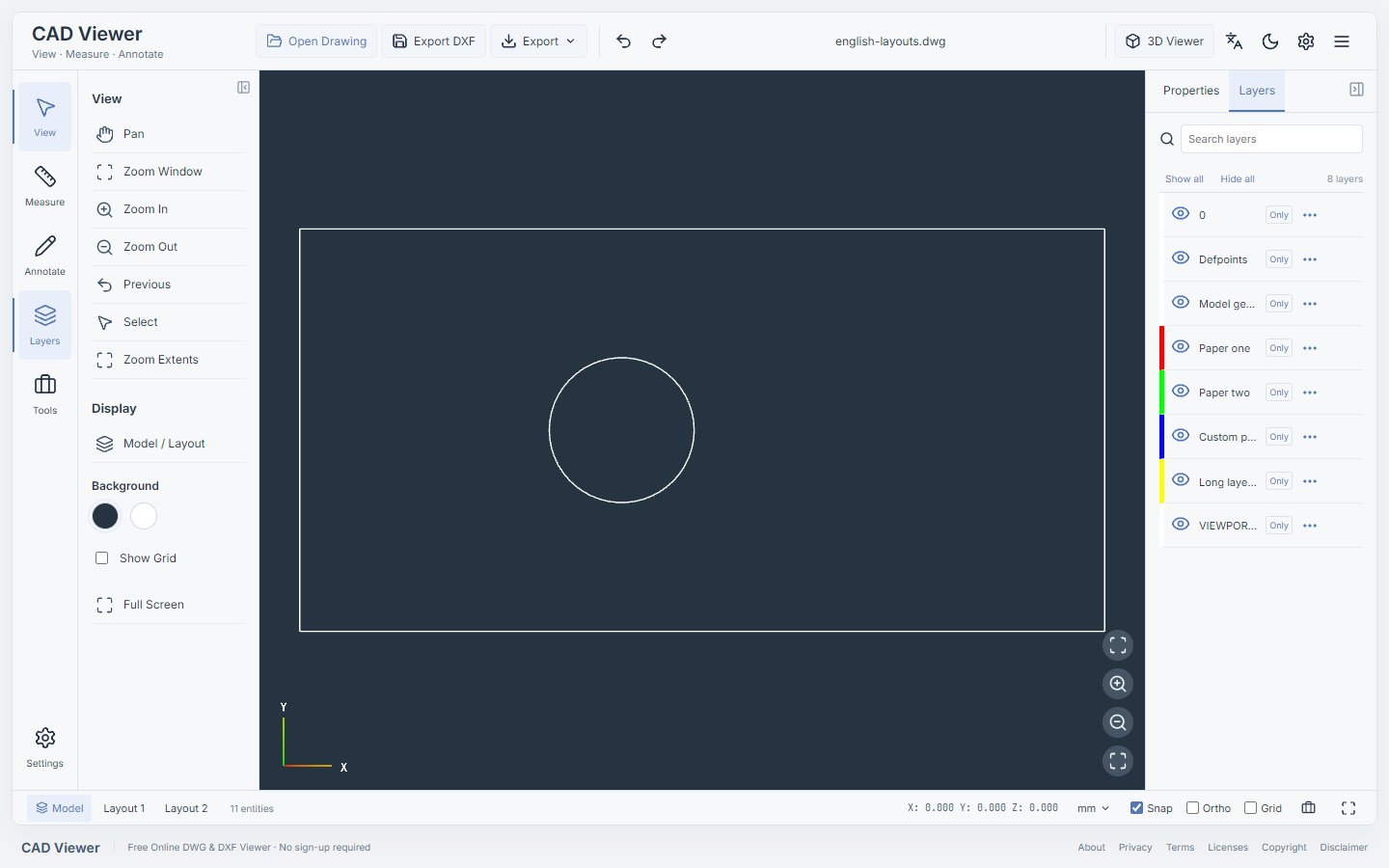
Find the relevant drawing layer
Choose Layers in the 2D workspace. The list comes from the parsed drawing, so names are the author’s actual layer names rather than categories invented by the viewer. Type part of a name into Search Layers to shorten the list. Compare the layer name and displayed content with the source drawing before deciding what to hide.
Hide, isolate and restore the view
Use the eye control to hide or show a layer. Only focuses on one layer; Show All restores the available drawing layers, including thawing layers. These controls help separate dimensions, construction lines or other content when the drawing’s author placed them on different layers. Hiding a layer does not delete its source geometry. Search filters the list; it does not itself filter the drawing.
Use layer states carefully
The layer menu exposes the lock, freeze and current-layer controls that the loaded drawing supports. A locked or frozen layer is not the same as a missing external reference or an entity that the parser could not display. If needed geometry stays absent after Show All, read the parser and font notices and compare the original drawing in a suitable CAD application.
CAD layers and annotation layers are separate
The Layers panel controls drawing layers. Review annotations have their own local visibility and locking controls in the annotation tools. Changing a review layer does not reorganize the DWG source. Save Annotations stores review data separately; it does not write a modified DWG.
Check the intended view before exporting
After focusing on the needed content, confirm the active model or paper layout, layer visibility, text and geometry before Export PDF. Inspect the downloaded PDF rather than assuming every source object was exported. DWG writeback is unavailable. Export DXF remains subject to the source-completeness guard, and important output should be reopened and checked.
Local processing and compatibility
Your selected drawing is read in the browser; there is no drawing-upload endpoint. Application assets and optional public samples are still downloaded, and optional anonymous usage counts are described in the Privacy Policy. Not every DWG version, proxy entity, external reference, engineering font or layout is fully supported. A visible layer list does not certify complete or engineering-accurate reproduction.
How to use it
- Open the 2D viewer and select your own DWG or DXF. Wait for the drawing and read any import notices.
- Choose Layers and search by a real layer name when the list is long.
- Use the eye control or Only to focus the drawing. Check that the expected geometry remains visible.
- Choose Show All when you finish reviewing, and independently check any PDF or supported DXF export.
Questions and answers
Does hiding a layer remove it from my original DWG?
No. Visibility changes the current drawing view. The viewer does not write DWG, so this is not a way to save a revised DWG source file.
Why is a layer still absent after Show All?
An unresolved reference, unsupported source entity, font issue or layout choice can affect the result independently of layer visibility. Read the import notices and verify important source content in professional CAD software.
Can I search for objects by typing in Search Layers?
That box filters layer names. It is not a drawing-text search or a promise that objects have been semantically classified.
Are annotation layers the same as DWG layers?
No. Annotations are local review records with their own layers and persistence. Their controls do not replace the source drawing’s CAD layer table.