CAD Viewer · Local drawing processing
Supported CAD formats and compatibility limits
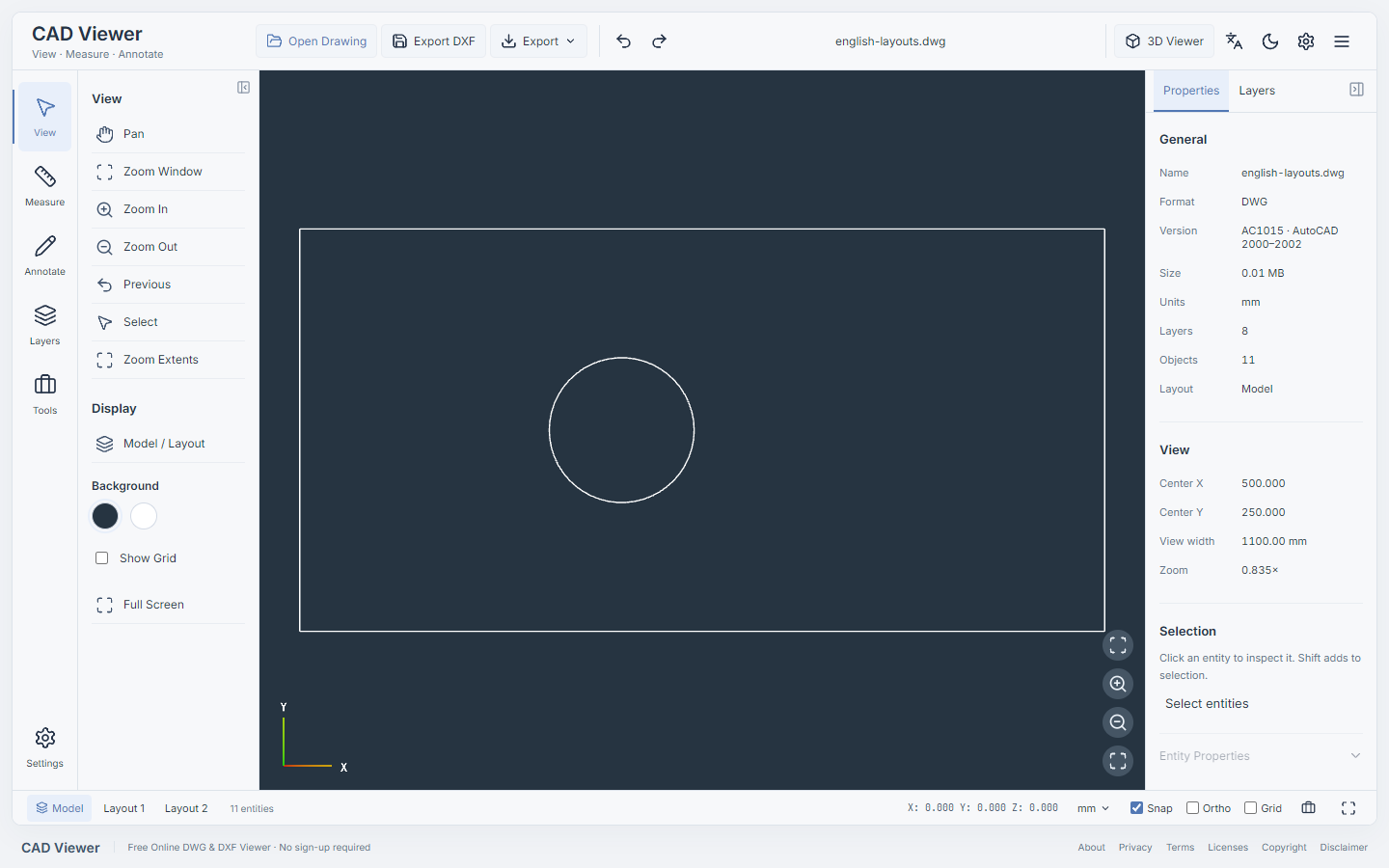
Choose a viewer based on the file you actually have. The 2D viewer opens supported DWG and DXF drawing content. The separate 3D viewer imports supported CAD exchange files and static meshes. File detection, successful parsing and a faithful rendering are different checks; the extension alone does not guarantee compatibility.
| File format | Viewer | Units and companions | Compatibility boundary |
|---|---|---|---|
| DWG | 2D | Check drawing units, fonts and external-reference notices. | LibreDWG conversion; version and entity support varies. No DWG writeback or 3D DWG model importer. |
| DXF | 2D | Check source units and actual model/paper layouts. | Parsed drawing entities only. Safe Export DXF can be blocked for unsupported entities or unresolved references. |
| STEP / STP | 3D | Declared source units normalized to millimetres. | Open CASCADE import and tessellation. Returned hierarchy only; no exact B-Rep measurement API or AP242 PMI. |
| IGES / IGS | 3D | Declared source units normalized to millimetres. | Open CASCADE tessellation; curve-only or unusual surface files may have no renderable triangles. |
| Open CASCADE BREP | 3D | Raw coordinate scale; source unit needs confirmation. | Open CASCADE text BREP, not arbitrary proprietary files that happen to use a BREP label. |
| STL | 3D | Physical source units need confirmation. | ASCII or binary triangle mesh. No CAD assembly hierarchy or standard material/texture definition. |
| OBJ + MTL + images | 3D | Select local model, referenced material and texture files together. Units need confirmation. | Actual mesh objects/groups; no CAD solid topology. Missing companions are reported rather than downloaded from remote model URLs. |
| GLB / glTF + BIN + images | 3D | glTF 2.0 uses metre coordinates. Select external glTF companions together. | Static scenes. Animation playback is not exposed; required Draco, Meshopt, Basis and other unsupported extensions are rejected. |
| FBX | 3D | Declared UnitScaleFactor where supported; inspect unit notices. | Supported static binary/ASCII FBX 7+ mesh subset. No animation playback or blanket compatibility claim. |
Use drawings in 2D and exchange models in 3D
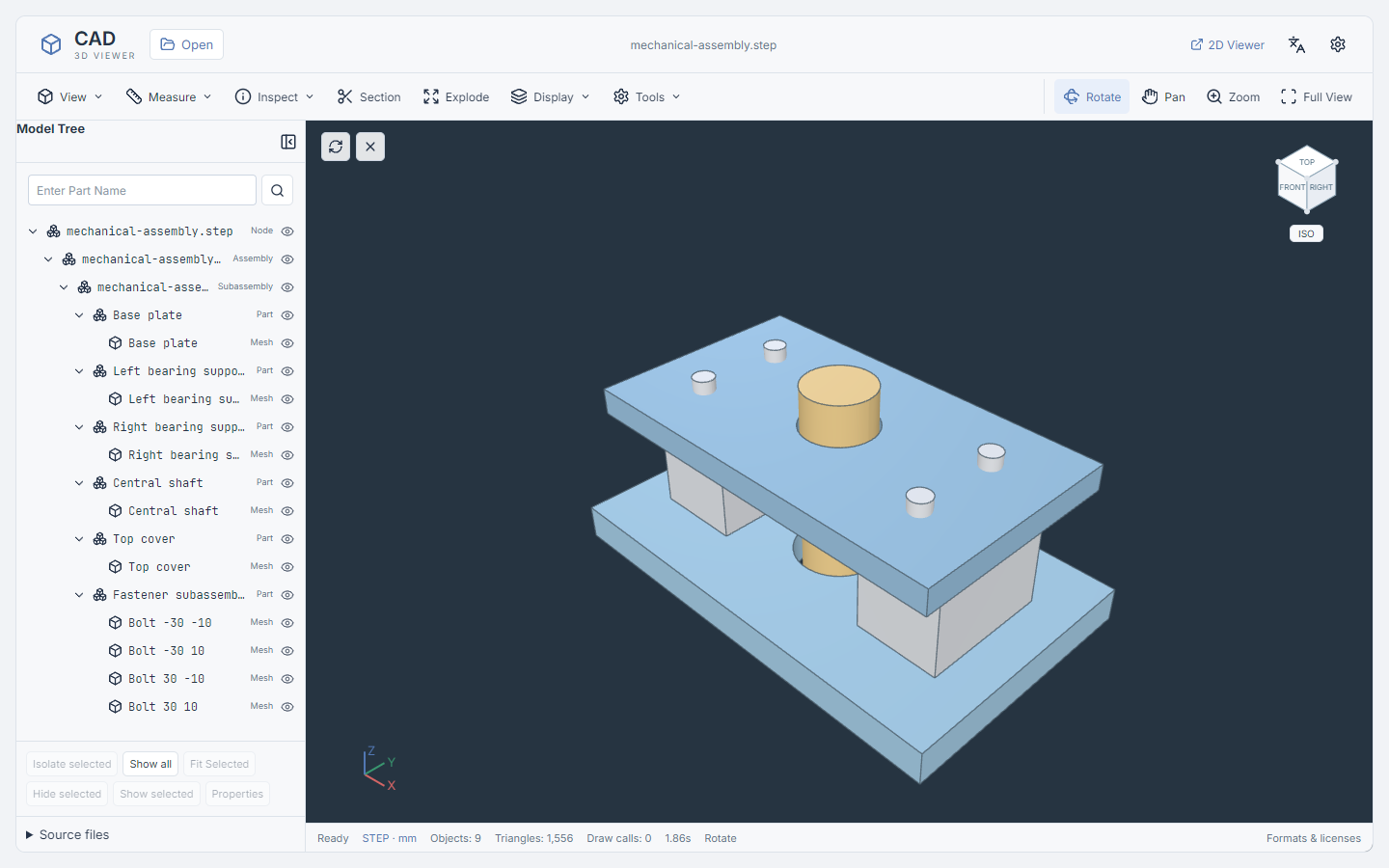
A DWG drawing and a STEP model are different inputs. Open DWG/DXF in the 2D workspace for drawing layers, distance/area/angle review, annotations and supported PDF or DXF export. Open STEP and mesh formats in the 3D workspace for rotation, model-tree inspection and the available approximate measurement or section tools. Selecting 3D does not turn a DWG into a supported 3D model.
Select the complete local file bundle
OBJ can refer to an MTL file and texture images. External glTF can refer to BIN buffers and images. Select those local files together and read the missing-resource list if import is blocked. The viewer does not fetch arbitrary external HTTP resources declared by a model and does not invent missing geometry. A self-contained GLB is often simpler, but required unsupported extensions still prevent loading.
Confirm units before interpreting measurements
STEP and IGES import geometry in millimetres; glTF/GLB uses metres. STL, OBJ and Open CASCADE BREP need a confirmed source unit. A coordinate value of 10 is not automatically 10 millimetres. The 3D display is triangulated, and fitted or mesh-based measurements are approximate. Section cuts are uncapped. Overlapping part volumes are not a Boolean union or a manufacturing certification.
Respect browser and importer limits
The current 3D importer limits a file to 128 MiB, a selected bundle to 256 MiB and 100 files, and decoded geometry to two million triangles, six million vertices and 128 hierarchy levels, with a 90-second import timeout. The synchronous main-thread FBX decode cannot be interrupted in the middle of its call, so cancellation or a timeout may not take effect immediately during that stage. Browser/GPU memory can fail earlier, and decoding may temporarily allocate more memory than the final model. These are guards, not a promise that every file below them will open. The 2D engine has separate drawing-dependent limits.
Formats that are not supported here
Native RVT, SLDPRT, SLDASM, CATPART, CATPRODUCT, JT, Parasolid X_T, SKP and IFC do not have import adapters in this release. DWG is handled by the 2D drawing viewer, not a general 3D DWG importer. If you control the source, export a supported exchange format from an authorized authoring application. Renaming a file extension does not convert its contents. There is no public CAD measurement API or server conversion service.
Local files and published test boundaries
Selected source files are parsed in the browser; this application has no drawing/model-upload endpoint. Local recent-file storage can retain source bytes and private names on this device. The site still requests application assets and uses the disclosed Cloudflare page analytics; optional anonymous CAD counts are off by default. Small self-authored examples have been opened in the actual viewers, including DWG, DXF, STEP, STL, OBJ, GLB, IGES, Open CASCADE BREP, static FBX and local-resource glTF. Such tests establish those samples, not all versions, devices or real-world engineering files.
How to use it
- Check the actual file extension and ask the author which units, references and exported content it requires.
- Choose the 2D drawing or 3D model workspace using the entries above; keep companion files with OBJ or external glTF.
- Read the importer notices, verify units, and compare the expected layers or parts with the rendered result.
- Check important measurements and any exported output against the source in suitable professional CAD software.
Questions and answers
Do you support every DWG version or CAD format?
No. Support depends on the actual importer, source version, entities, references and geometry. The table describes implemented adapters and limits, not universal CAD compatibility.
Can I open SolidWorks assemblies or Revit files directly?
No native SLDASM/SLDPRT or RVT adapter is present. Use an authorized source application to export a supported exchange file first. The viewer does not reconstruct omitted assembly references.
Why can the file be recognized but fail to open?
A valid extension or header can identify a format while its geometry is corrupt, empty, unsupported or over the import budget. Missing companion resources, required compressed extensions or limited device memory can also block loading.
Does opening a file prove that dimensions and parts are complete?
No. Inspect importer notices, actual hierarchy, units and visible geometry. The 3D result is tessellated and the 2D result can omit unsupported details. Verify consequential engineering work in appropriate professional CAD software.